
Why automate invoices?
You just got a payment notification. Now you need to create an invoice — open your template, copy the customer details, add line items, double-check the math, export to PDF, attach it to an email. For one order? Fine. For 10 a day? That's your entire morning gone.
Stripe's built-in invoices work, but they look like everyone else's. Same layout, same font, same "powered by Stripe" branding. If you're running a serious business, you probably want something that actually looks like your business.
Here's what we're building: a Make scenario that fires whenever you get paid, retrieves the invoice details from Stripe, generates a branded PDF, and delivers it to your customer via email while saving a copy to Google Drive.
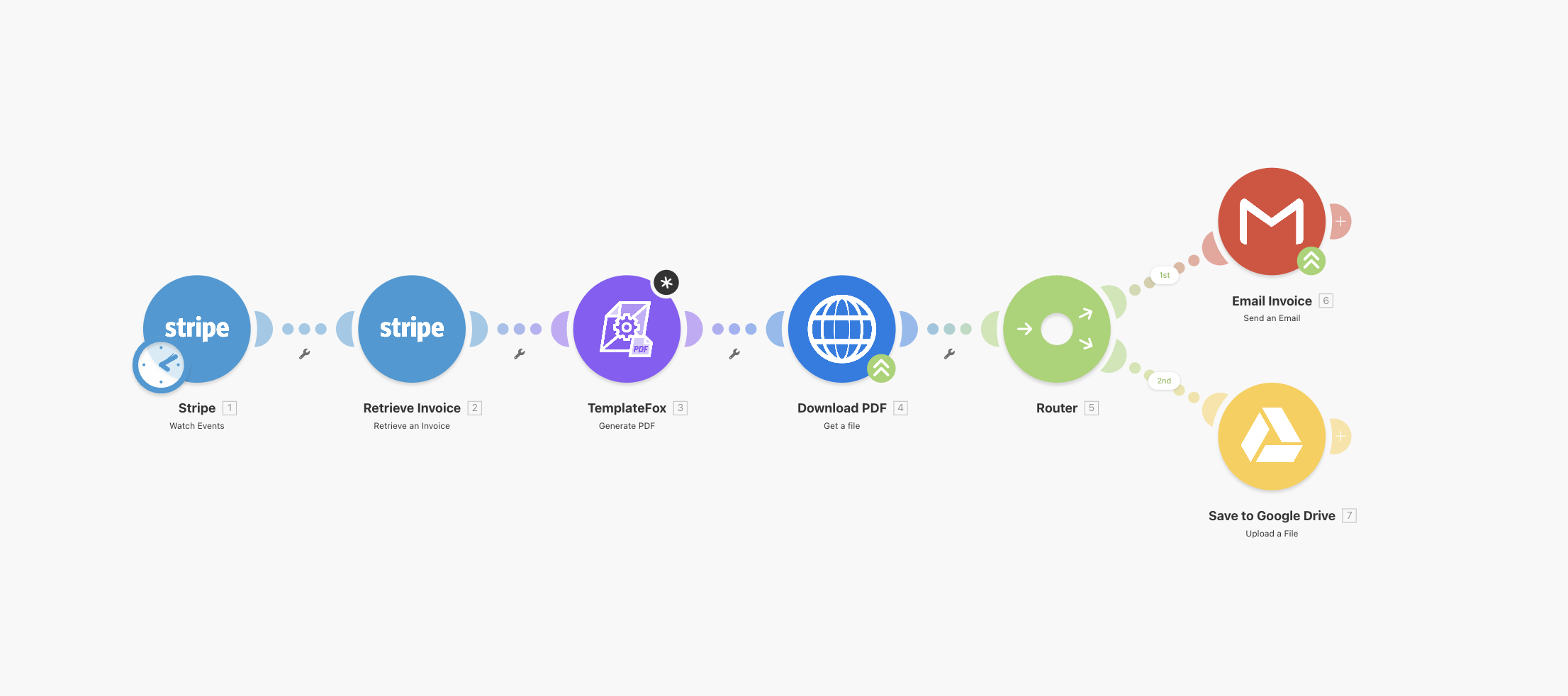
Use this template on Make — import the complete scenario in one click and configure your accounts.
Create your invoice template
1.1 — Choose a template
Start with one of our pre-built invoice templates or create your own:
- Go to Templates
- Filter by Invoice category
- Choose a template that matches your style (minimal, corporate, creative)
- Click Use Template to add it to your dashboard
This tutorial uses the Freelancer Consultant Invoice template. It's clean, supports VAT and IBAN fields, and works well for both freelancers and small businesses.
Other options: European Corporate for enterprise invoicing, Modern with QR Code for instant payments.
Screenshot: Freelancer Consultant Invoice template in the template gallery
1.2 — Understand the template structure
The template uses dynamic fields that get replaced with real data. Some fields you'll hardcode (your company info), others come from Make (client, invoice details).
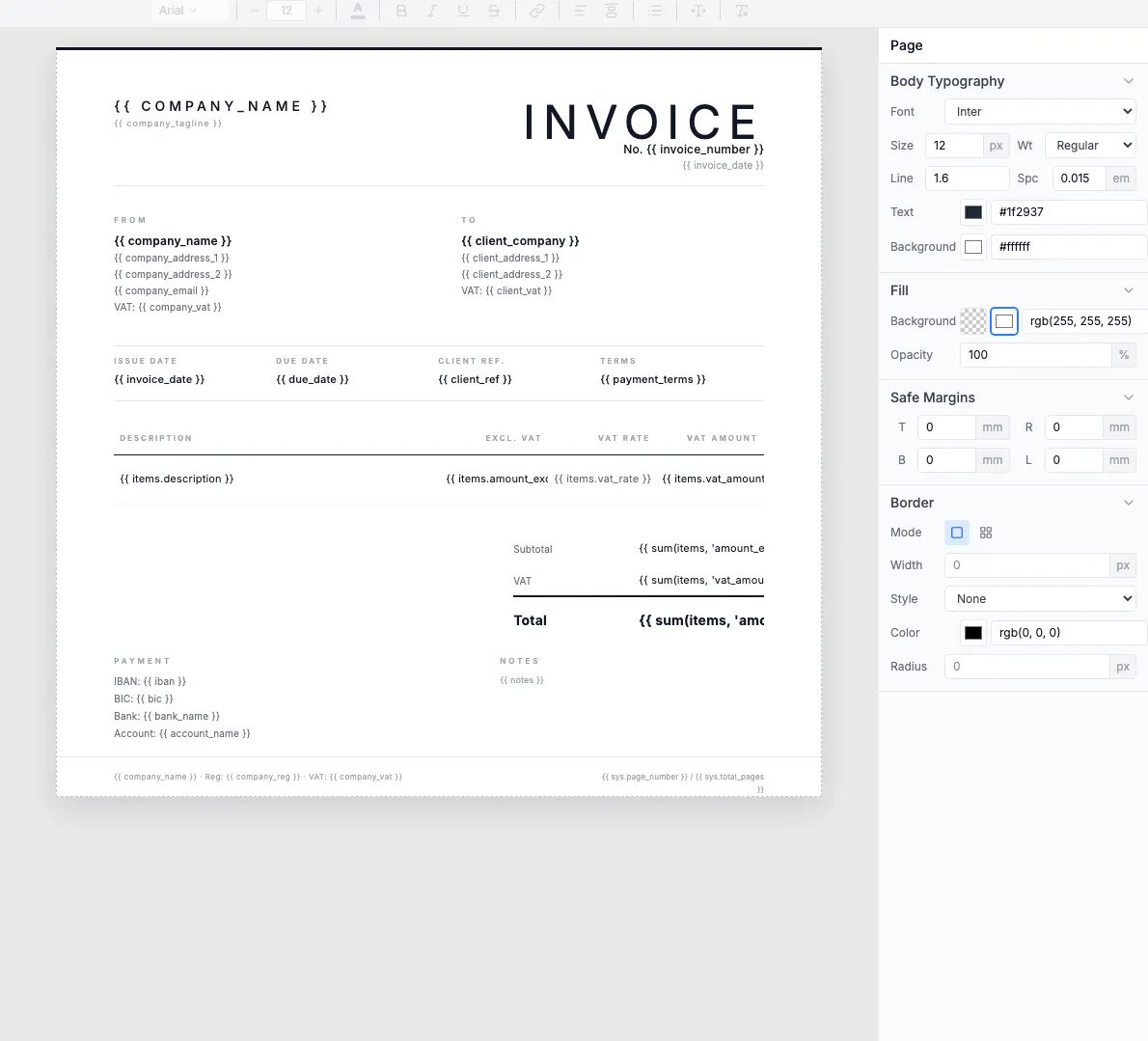
Hardcode once (your company)
company_name— Your business namecompany_address— Your addresscompany_vat— Your VAT numberiban,bic,bank_name— Bank details
Edit these directly in the template — they stay the same for every invoice.
Dynamic from Make (per invoice)
client_company— Customer nameclient_address— Customer addressinvoice_number— Unique invoice IDinvoice_date,due_date— Datesitems[]— Line items array
Map these from your payment platform in the Make scenario.
Auto-expanding line items table
The items table automatically repeats for each product in the items array. Send 2 items, get 2 rows. Send 10 items, get 10 rows.
Automatic totals with expressions
The template calculates subtotal, VAT, and total automatically using sum() expressions. You don't need to calculate these in Make.
Page numbers (for multi-page invoices)
The footer shows page numbers using system variables. If your invoice has many line items and spans multiple pages, pagination is automatic.
Learn more: Expressions · System variables · Tables
1.3 — Test with the Preview tab
The Preview tab lets you test your template with sample data before building the Make scenario. The JSON panel on the right contains your test data, and the rendered invoice appears on the left in real-time.
JSON data maps to template fields
Each key in the JSON (like client_company) fills its matching {{client_company}} placeholder.
Line items array becomes table rows
The objects in the items array generate table rows automatically.
Totals calculate automatically
The sum() expressions add up all values across the items array.
Tip: Use the Copy Payload button to copy the JSON structure. This is the exact format you'll need to send from the Make HTTP module.
View full JSON payload example
Build your Make scenario
The scenario runs automatically. Payment hits Stripe, invoice lands in your customer's inbox and gets archived to Google Drive. All using native modules — no HTTP configuration or JSON to write.
2.1 — Set up the Stripe trigger
The scenario starts when a Stripe checkout session completes. Stripe's native Make module handles the webhook automatically.
- Go to make.com and create a new scenario
- Click the + button to add your first module
- Search for Stripe → select Watch Events
- Filter by
checkout.session.completed - Connect your Stripe account and run once to pull sample data
Testing with Stripe Test Mode
Connect Make using your test secret key (starts with sk_test_). Then create a test payment in Stripe Dashboard:
- Card:
4242 4242 4242 4242 - Expiry: any future date (e.g.,
10/30) - CVC:
123
2.2 — Retrieve the invoice
The checkout event contains an invoice ID. Add a second Stripe module to retrieve the full invoice object — it includes the customer details, line items, amounts, and everything you need.
- Click + after the trigger
- Search for Stripe → select Retrieve an Invoice
- Map the Invoice ID field to the checkout session's
invoiceproperty
What you get from the invoice object
number — Invoice number (e.g., INV-0087)customer_name — Customer namecustomer_email — Customer emailcustomer_address — Full address objectlines.data[] — Line items arraysubtotal, tax, total — Amounts (in cents)currency — Currency codedue_date — Due date timestampStripe amounts: Stripe sends amounts in cents (e.g., 2500 = $25.00). Use Make's built-in formatNumber() to divide by 100 when mapping to your template.
2.3 — Generate the PDF
TemplateFox has a native Make module — no HTTP configuration needed. Select your template, and the module automatically loads its fields for visual mapping.
- Click + after the Retrieve Invoice module
- Search for TemplateFox → select Generate PDF
- Connect your TemplateFox account using your API key (from your dashboard)
- Select your invoice template from the dropdown
- The template fields appear automatically — map each one from the Stripe invoice data using Make's variable picker
Tip: Hardcode your company info (address, IBAN, VAT) directly in the template editor. Only map dynamic data — customer name, invoice number, amounts, line items — from the Stripe module. This keeps the scenario cleaner.
The module returns a signed URL to the generated PDF. This URL is used in the next steps to email and store the invoice.
2.4 — Deliver the invoice
The last part of the scenario downloads the PDF and delivers it to two destinations in parallel using a Router: email to the customer and a copy to Google Drive for your records.
Download the PDF
- Add an HTTP → Get a file module
- Map the URL to the PDF URL from the TemplateFox module
Add a Router
- Add a Router module after the download — this creates two parallel branches
Branch 1: Email the invoice
- Add Gmail → Send an Email
- To: map to
customer_emailfrom the Retrieve Invoice module - Subject:
Your Invoice {{number}} - Attachments: map the downloaded PDF file from the HTTP module
Branch 2: Save to Google Drive
- Add Google Drive → Upload a File
- Select your destination folder
- File name:
{{number}}.pdf - Data: map the downloaded PDF file
That's it. Payment comes in → invoice gets generated → customer receives a branded PDF by email → a copy is saved to your Drive. Turn the scenario on and it runs 24/7.
Import the complete scenario to get started in one click.
Scale with iteration
The basic scenario above handles one invoice per payment. But Make really shines when you need to process invoices in bulk — generating dozens or hundreds at once from a spreadsheet, database, or batch of transactions.
3.1 — Bulk invoicing with the Iterator module
Make's Iterator module splits an array into individual items and processes each one separately. This is perfect for generating invoices from a batch of records — like rows in Google Sheets or records in Airtable.
Here's how to set it up:
- Use Google Sheets → Search Rows as the trigger (filter for rows where "Invoice Sent" = FALSE)
- Add a Flow Control → Iterator module
- Point the Iterator at the array of rows from Google Sheets
- Add the TemplateFox → Generate PDF module — it runs once per row
- Add the Gmail module to send each invoice
- Add Google Sheets → Update Row to set "Invoice Sent" = TRUE
Rate limits: Make processes Iterator items sequentially, not in parallel. For large batches (100+ invoices), consider scheduling the scenario to run during off-peak hours. The TemplateFox API handles concurrent requests well, but email providers may have sending limits.
Screenshot: Make scenario with Iterator module showing batch invoice processing flow
3.2 — Conditional routing
Make's Router module lets you branch your scenario based on conditions. Use this to send different invoice templates depending on the transaction type, region, or amount.
By region
EU customers get a VAT-compliant template with IBAN details. US customers get a simpler template with USD formatting.
By amount
Orders over $1,000 use a detailed template with extra terms and conditions. Smaller orders use a minimal receipt-style template.
To set up routing:
- Add a Router module after your trigger
- Each route gets a filter — e.g.,
customer.address.country = "US" - Each route has its own TemplateFox module pointing to a different template
- All routes can share the same email module at the end
Pro tip: Combine Router with Iterator for maximum flexibility. For example: fetch all unpaid invoices from Airtable, iterate through them, then route each one to the right template based on the client's country.
Screenshot: Make scenario with Router module showing two branches for EU and US invoice templates
Supported platforms
Any payment platform with a Make module or webhook support works. Here are the most popular:
