n8n Integration
The official TemplateFox community node lets you generate PDFs from any n8n workflow — drop it after a webhook, a schedule trigger, an AI Agent, or any data source.
Community node
Section titled “Community node”The node is published on npm as n8n-nodes-templatefox.
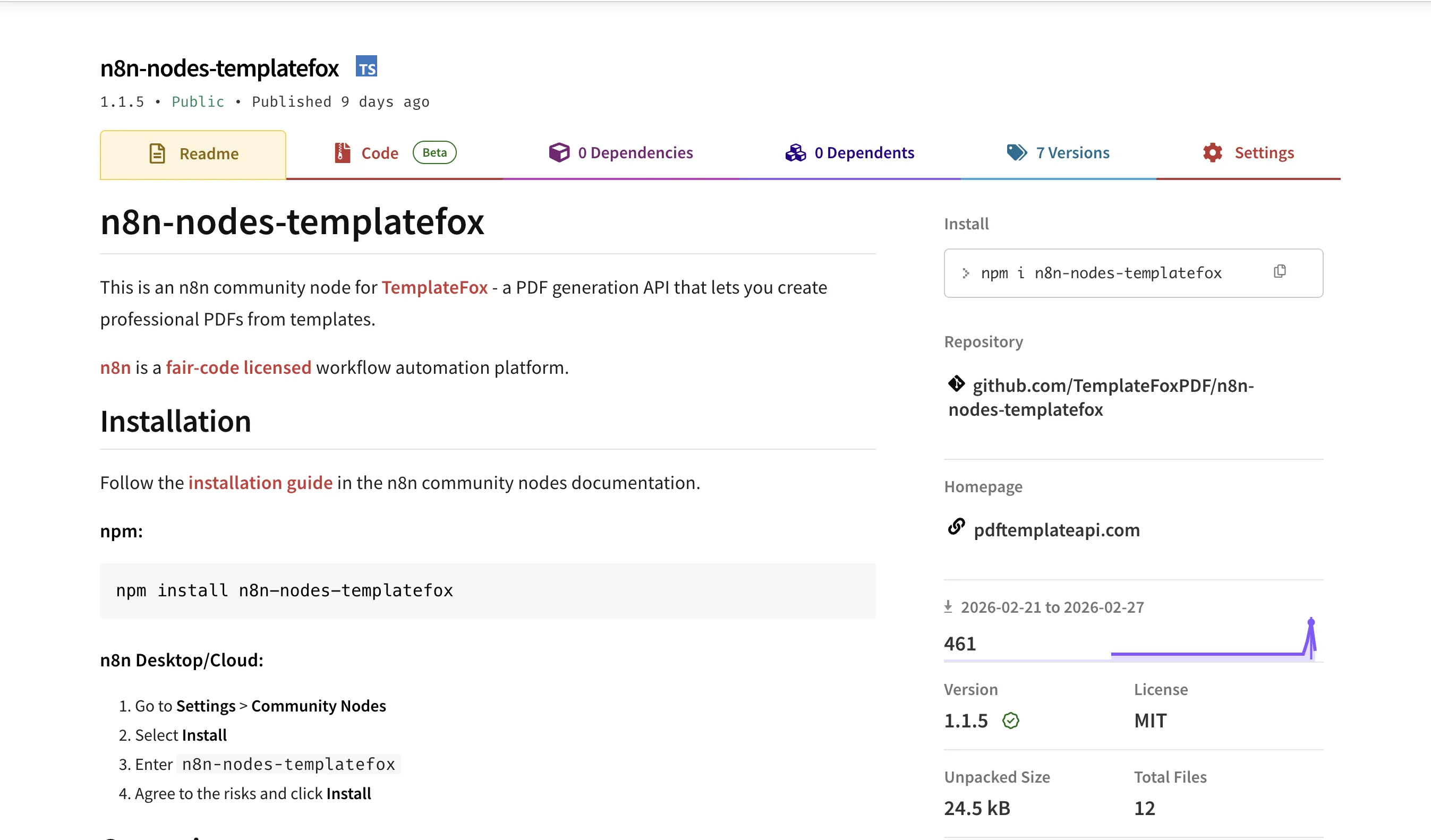
You can also find it in the n8n integrations directory.
Installation
Section titled “Installation”n8n Desktop / Cloud
Section titled “n8n Desktop / Cloud”- Go to Settings > Community Nodes
- Select Install
- Enter
n8n-nodes-templatefox - Agree to the risks and click Install
Docker
Section titled “Docker”Add the package to your N8N_CUSTOM_EXTENSIONS environment variable:
N8N_CUSTOM_EXTENSIONS="n8n-nodes-templatefox"1. Create a TemplateFox credential
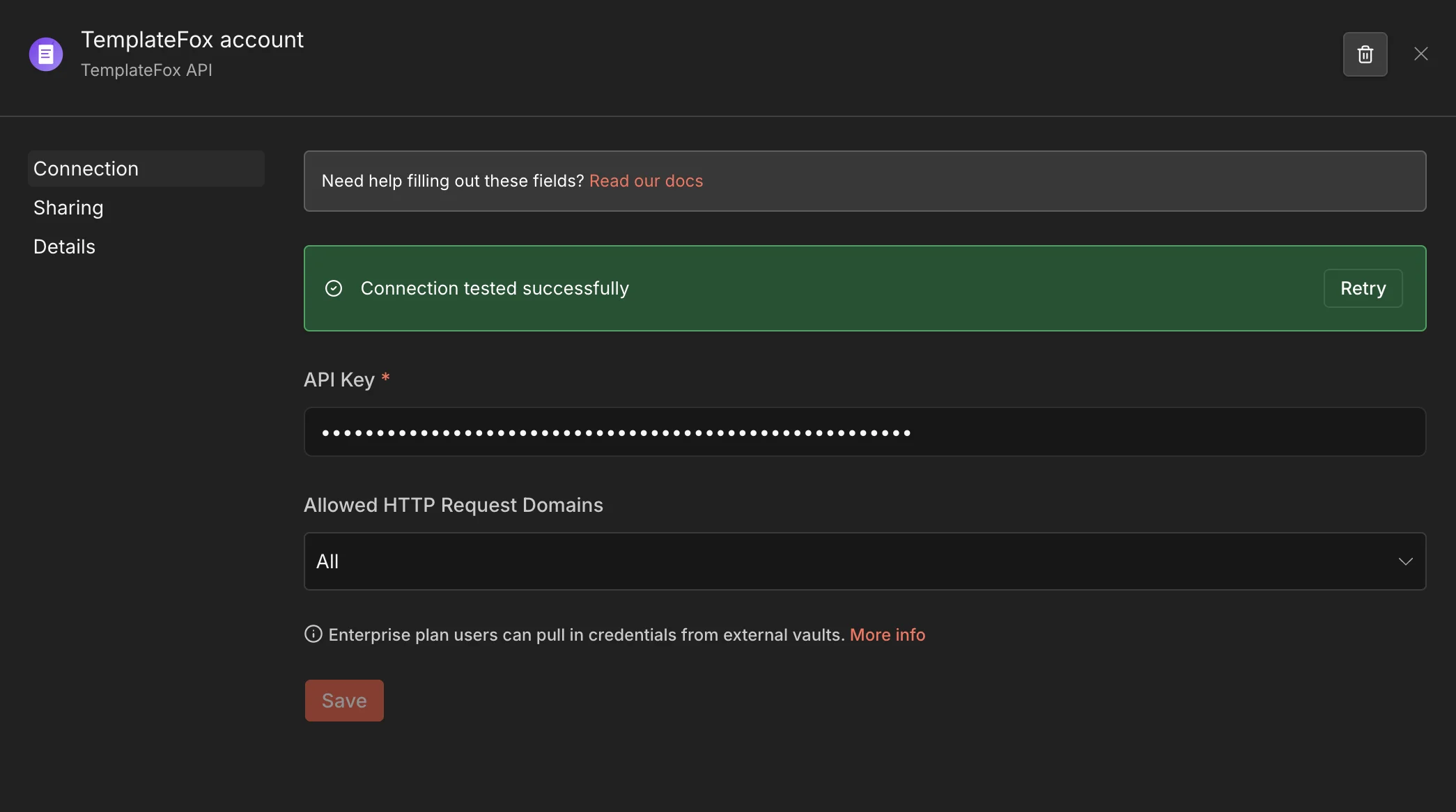
Section titled “1. Create a TemplateFox credential”Grab your API key from your Dashboard, then in n8n go to Credentials > Add Credential, search for TemplateFox API and paste your key. Click Save — n8n will test the connection and confirm it works.
2. Add the TemplateFox node and select the credential
Section titled “2. Add the TemplateFox node and select the credential”Add the TemplateFox node to your workflow. In the Credential dropdown, pick the account you just created.
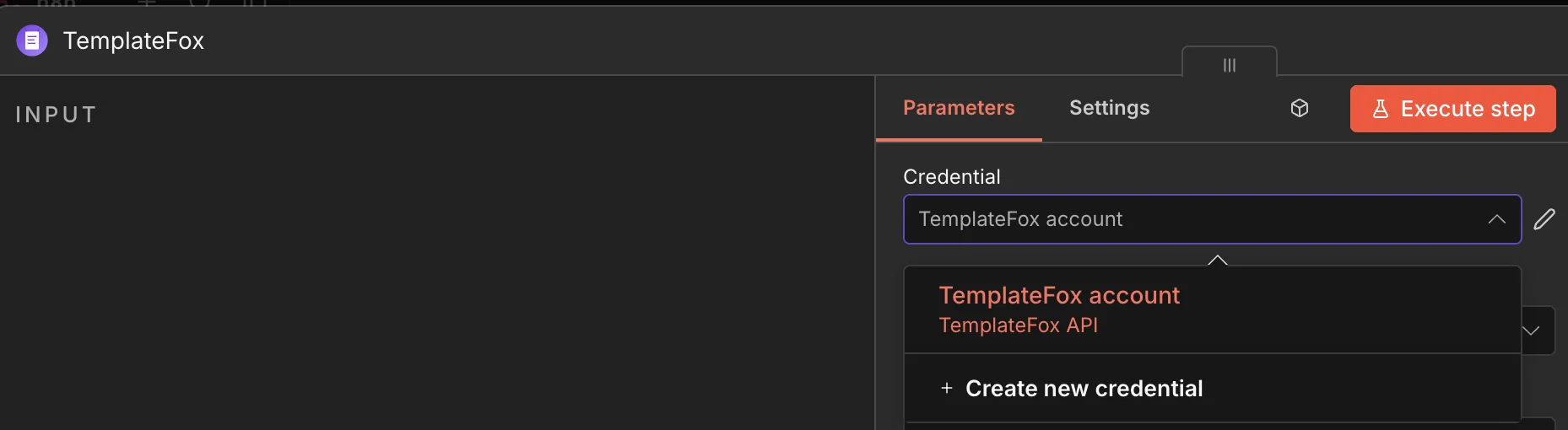
You’re ready to generate PDFs.
Node configuration
Section titled “Node configuration”Operation
Section titled “Operation”The Operation dropdown lists everything the node can do. The two you’ll use most are Generate PDF (synchronous, returns the signed URL right away) and Generate PDF (Async) (queues a job and returns a job_id immediately — best for long renders or large batches).
The full list of operations — including PDF utilities and read-only lookups — is in All node operations below.

Template
Section titled “Template”The node automatically fetches every template in your TemplateFox account and lists them by name in the Template Name or ID dropdown — no copy-pasting IDs.

Data input mode
Section titled “Data input mode”Once a template is selected, the Data Input Mode dropdown offers two ways to pass data:
- Use Template Fields — the node reads your template’s variables and renders one input per field.
- JSON — you provide a single JSON object that matches the template’s data shape, arrays and nested objects included.

Use Template Fields
Section titled “Use Template Fields”Each template variable shows up as its own input. Map values from previous nodes the standard n8n way.

Pass one JSON object. Arrays and nested objects pass through unchanged — handy for invoice line items, tables, or repeating sections.

Options
Section titled “Options”Open the Options panel and click + Add Option to expose extra controls — set a custom filename, pin a template version, change the PDF variant, or upload directly to your S3 bucket.

| Option | Description |
|---|---|
| Template Version | Pin to a tagged version, or leave on Draft to use the live editor |
| PDF Variant | Generate a standards-compliant PDF/A-1b, PDF/A-2b, or PDF/A-3b archival PDF |
| Filename | Custom filename for the PDF (without .pdf extension) |
| Expiration | How long the PDF URL stays valid (default: 24 hours) |
| Store on S3 / S3 Filepath / S3 Bucket | Upload the result to your own S3 bucket instead of the TemplateFox CDN. See Upload to S3 to configure the integration first. |
Output
Section titled “Output”| Field | Description |
|---|---|
url | Signed URL to download the PDF |
filename | The PDF filename |
credits_remaining | Credits left in your plan |
expires_in | Seconds until the URL expires |
All node operations
Section titled “All node operations”Most workflows only need Generate PDF — the rest of the toolkit is available on the same node when you need it.
Generation
Section titled “Generation”| Operation | Description |
|---|---|
| Generate PDF | Sync generation. Returns a signed URL or a binary file output. Supports the PDF/A archival variant. |
| Generate PDF (Async) | Queue a job and receive a job_id immediately. Use the Get PDF Job operation (or a webhook) to retrieve the result later. Best for long renders or large batches. |
PDF tools (no template needed)
Section titled “PDF tools (no template needed)”| Operation | Description |
|---|---|
| Merge PDFs | Concatenate 2+ PDFs (URL or base64) into one document. |
| Extract PDF Pages | Extract a selection of pages using a 1-3, 5, 7-9 syntax. |
| Rotate PDF | Rotate every page by a single angle, or apply a per-page rotation map. |
Read-only
Section titled “Read-only”| Operation | Description |
|---|---|
| Get PDF Job | Look up an async job by ID. |
| List PDF Jobs | List recent jobs, optionally filtered by status. |
| Get Account | Returns remaining credits and account email. |
AI Agent support
Section titled “AI Agent support”The TemplateFox node is compatible with n8n’s AI Agent nodes (usableAsTool: true). This means you can attach it as a tool to any AI Agent, and the agent will decide when and how to generate PDFs based on the conversation or input data.
How it works
Section titled “How it works”- Add an AI Agent node to your workflow (e.g. OpenAI, Anthropic)
- Attach the TemplateFox node as a tool
- The agent receives the template fields as its tool schema — it knows what data is needed
- When the agent decides a PDF should be generated, it calls the TemplateFox tool with the right parameters
The agent handles the reasoning: extracting data from unstructured text, picking the right values for each field, and triggering generation at the right moment.
Example: AI-powered document processing
Section titled “Example: AI-powered document processing”An agent receives an email with order details in free text. It extracts the customer name, items, quantities, and totals — then generates an invoice PDF using your template. No manual parsing, no rigid field mapping.
This works for any document type: invoices from email threads, certificates from form submissions, shipping labels from order webhooks, receipts from payment events.
Workflow example
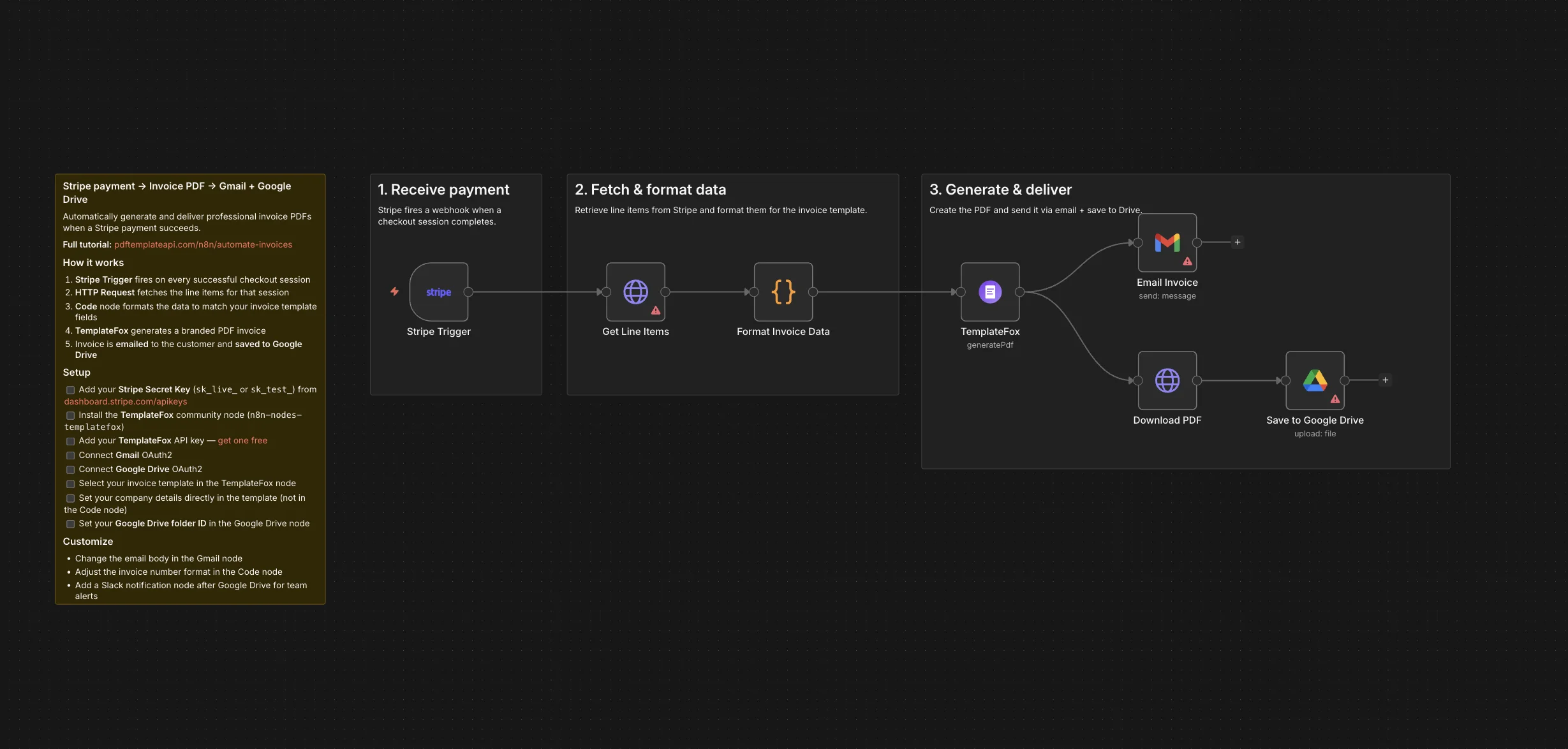
Section titled “Workflow example”Stripe payment → Invoice PDF → Gmail + Drive
Section titled “Stripe payment → Invoice PDF → Gmail + Drive”A ready-to-import workflow that listens for successful Stripe payments, retrieves the invoice and line items, generates an invoice PDF with TemplateFox, then emails it to the customer and archives a copy to Google Drive.
- Step-by-step guide — full walkthrough with screenshots, template setup, and troubleshooting
- Import the workflow on n8n.io — one-click import into your n8n instance
Next steps
Section titled “Next steps”- Get Started in 5 Minutes — Create your first template
- Data Binding — Learn how to pass dynamic data
- API Reference — Full endpoint documentation