PDF Template Pages — Fixed and Infinite Layouts
A template contains one or more pages. Each page is independently Fixed or Infinite — and you can mix both in a single document (for example, a fixed cover page followed by an infinite invoice body).
Fixed vs Infinite — when to use which
Section titled “Fixed vs Infinite — when to use which”Choose the page type based on the kind of document you are building.
Fixed
The page has exact dimensions matching the selected paper format. You place elements freely on the canvas, and the output is always a single page at that size.
Best for
- Certificates
- Posters, flyers, covers
- Single-page designs where layout matters
Infinite
The page has a fixed width but grows vertically to fit your content. At generation time, it is automatically split into multiple physical pages when it exceeds the paper format.
Best for
- Invoices, quotes, receipts
- Reports with dynamic lists
- Support docs, contracts
You can mix fixed and infinite pages inside the same template.
Add a page
Section titled “Add a page”Click + Add Page below the canvas. A modal lets you configure the new page.

- Page type — Fixed or Infinite (see above)
- Paper format — A4, Letter, Legal, Tabloid, or A0–A6
- Orientation — Portrait or Landscape
You can add, reorder, and delete pages at any time. Each page keeps its own type and format.
Page settings
Section titled “Page settings”Select a page in the canvas or in the Layers panel to reveal its settings in the right panel.
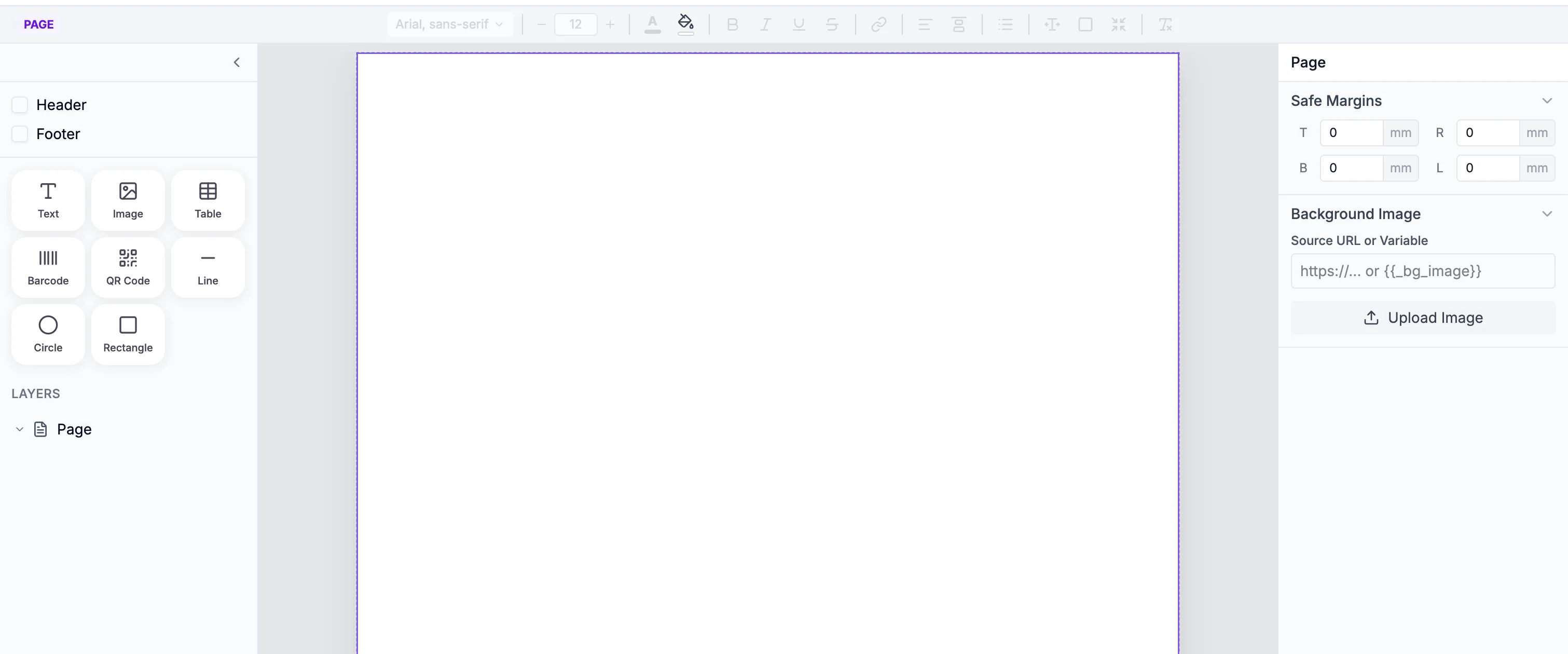
Safe margins
Section titled “Safe margins”Safe margins define the space between the edge of the page and where your content begins. They push content inward so nothing gets cut off when printing.
Set each side independently — top, right, bottom, left — in millimeters. A common starting point is 8mm on all sides for A4.
Background image (Fixed pages only)
Section titled “Background image (Fixed pages only)”Fixed pages support a full-page background image, useful for pre-printed stationery, branded certificates, or posters with a visual backdrop.
You can set the source three ways:
- Paste a URL in the Source URL or Variable field (e.g.
https://…) - Click Upload Image to upload a file directly
- Use a dynamic variable like
{{bg_image}}to set the background from your API payload at generation time
Background images are not yet supported on Infinite pages.
How Infinite pages split
Section titled “How Infinite pages split”An Infinite page is not an endless single page — it is a single logical page that TemplateFox splits intelligently across multiple physical pages when the content exceeds the paper format.
The split is automatic and designed to keep your document readable:
- Headers and footers repeat on every physical page that an Infinite page produces. On Fixed pages there is always a single physical page, so header and footer appear once.
- Tables break across pages and the table header row is repeated at the top of each page.
- Text is cut at natural breakpoints — between paragraphs and lines, never mid-word.
- Sections try to stay together — if a section fits, it is kept on the same page rather than being split.
This is why Infinite pages rely on sections: they are the unit the split algorithm works with. On Fixed pages you place elements directly on the canvas; on Infinite pages, group your content into sections so the split behaves predictably.
Force a page break
Section titled “Force a page break”There is no “page break” element inside an Infinite page. To guarantee that a block of content starts on a fresh physical page, add a second Infinite page to your template. Each page always starts at the top of a new physical page, so a second Infinite page acts as a hard page break between two flowing sections.
For example, to render a two-part report where the appendix must always start on a new page, use two Infinite pages — the first for the main report, the second for the appendix.
Next steps
Section titled “Next steps”- Sections — Structure Infinite pages and control page breaks
- Header & Footer — Add repeating content to every page
- Components — Elements you can place inside pages and sections